Here are our key troubleshooting tips to ensure a smooth video call experience.
Permission settings:
-
Be sure to allow access to your microphone/camera by accessing your permission settings of your browser.
(Examples below are using the latest version of Chrome)
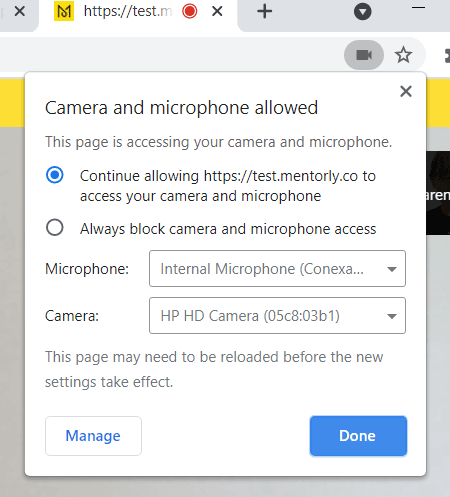
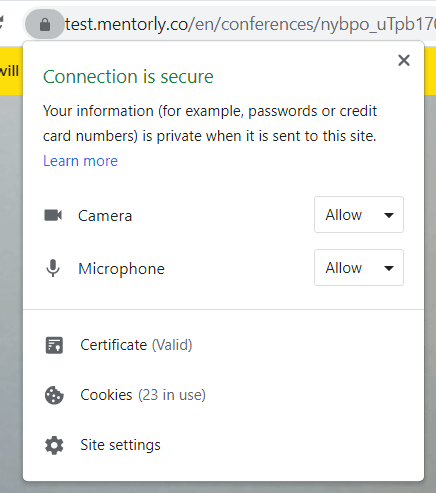
- If your microphone/camera are internal (like on a laptop), please head to your System Preferences and ensure your microphone input/output are properly set.
- If you are using a private work laptop, your company may have restricted your permission settings: it is best to join your video session via a personal laptop.
Browser:
- Close down any other program, app and/or browser that might be using your camera or microphone.
- The following browsers are best supported: Chrome, Firefox, Safari
- To optimize your Mentorly experience, please ensure you are using a recent version of your browser. Older versions may not be supported.
Sessions hosted on Zoom:
Mentors can host their sessions on their own Zoom account instead of Mentorly Video. If the session page shows Join on Zoom, the call runs in Zoom.
- Camera and microphone permissions are then managed by Zoom, not by your browser on the Mentorly page. Check your devices in Zoom before the call.
- The meeting opens in a new tab. If you closed it by mistake, go back to the session page in Mentorly and click Join on Zoom again.
- Mentors: if you see a prompt to reconnect Zoom, go to the Meeting settings card on your Calendar page and reconnect your account. Until you do, new sessions fall back to Mentorly Video so no session is left without a link.
Read more in Using Zoom for your Mentorly sessions.
Have any questions or need any assistance?
Not to worry, we’re here to help!
You can contact the Mentorly support team by going to the Help tab found on your personal dashboard and clicking Go to Live Chat.
Please include the following when you chat with us:
- A screenshot of your entire browser screen
- The URL of the page you are on
- The type of device and browser